How to Create a Job Post and Social Ad in LayagOFW
Learn how to create a LayagOFW Job Pool, prepare social-ready recruitment ads, select the best job highlights, publish the opportunity, and monitor applications and performance from one dashboard.
Published 10/14/2026
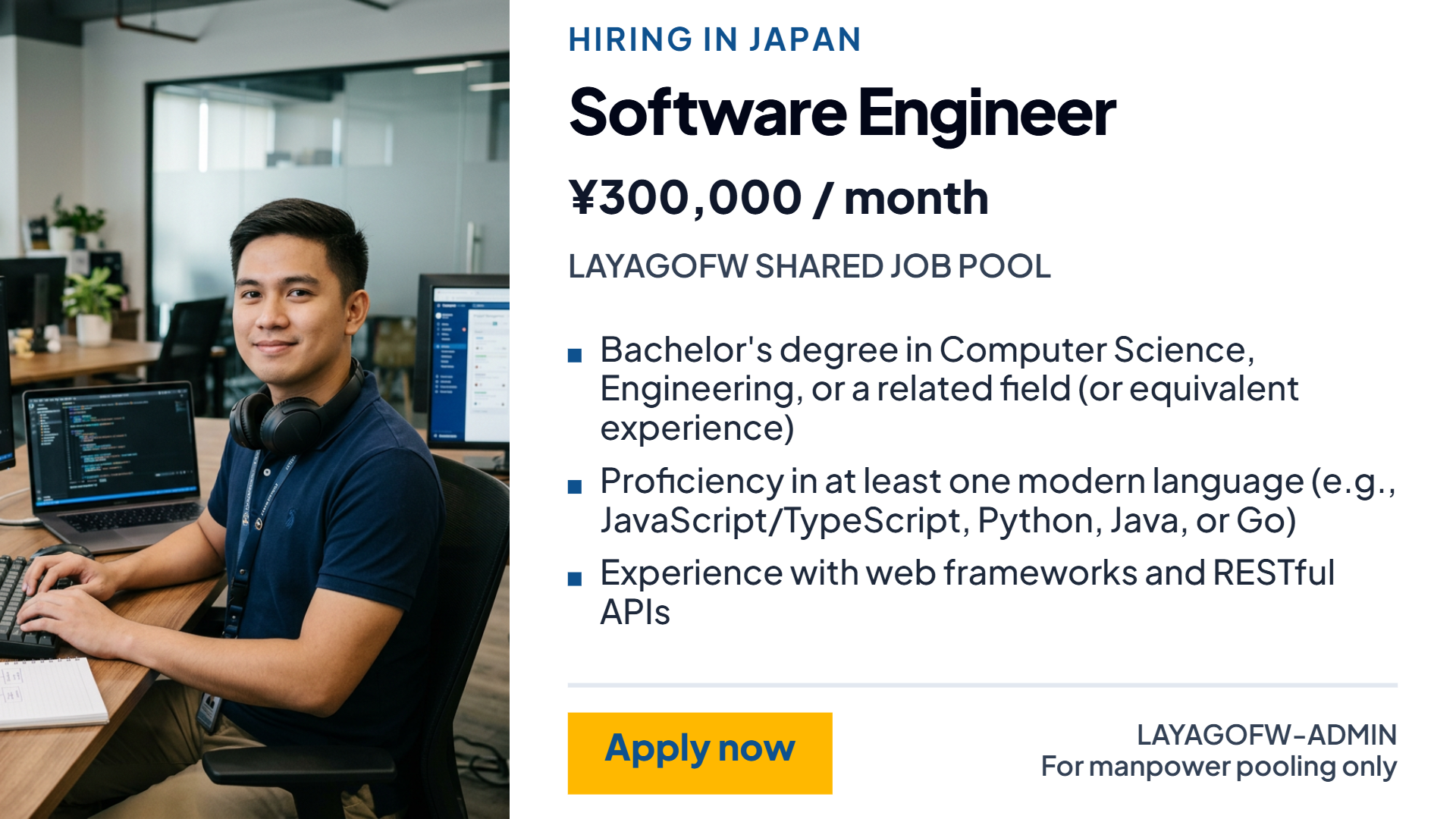
LayagOFW Job Pools help recruitment agencies publish opportunities, prepare social-ready ads, receive applications and monitor results in one place. This guide walks through the complete process, from entering the job details to reviewing the candidate pipeline.
Video walkthrough: Create a job post and social ad
Before you start
Prepare the job information your agency is authorized to publish:
Job title and category
Destination and number of openings
Job description and schedule
Qualifications and benefits
Confirmed salary information
The recruiter responsible for the Job Pool
Review the details before publishing, especially the destination, pay, qualifications, benefits and worker image.
1. Create the Job Pool
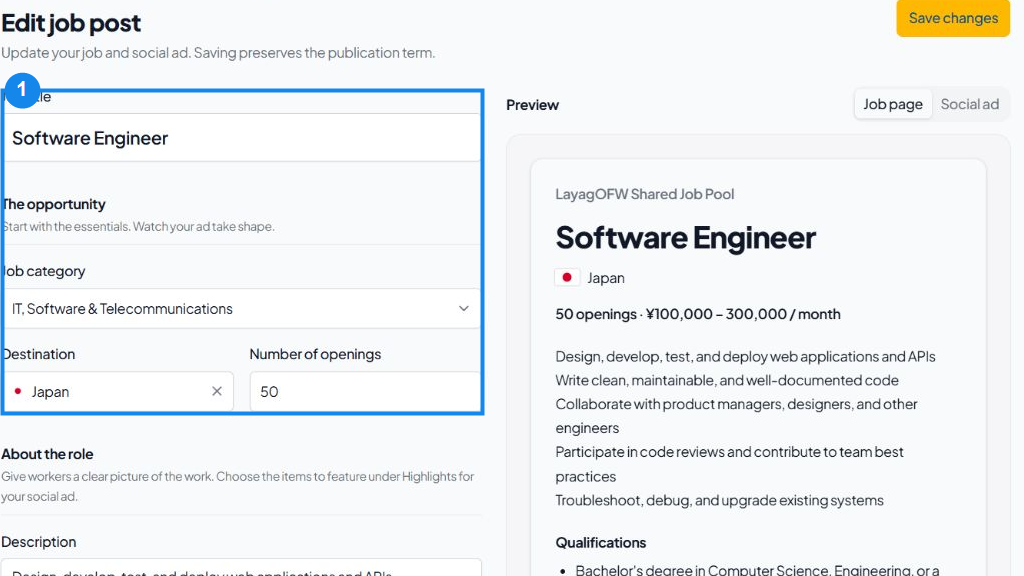
Enter the essential job details while checking the live preview.
Open Job Pools and select New.
Enter the job title and choose the appropriate category.
Select the destination and enter the number of openings.
Write a clear description of the work, setting, duties and schedule.
Enter one qualification per line and one benefit per line. These entries become choices for the social-ad highlights later.
Add the currency, pay frequency, minimum pay and maximum pay when the salary is confirmed.
Choose whether the social ad should feature the minimum or maximum salary.
Select the assigned recruiter and add an internal shortlist target if your team uses one.
Choose whether the Job Pool should renew automatically every 30 days.
Use Save draft if the details still need review. Select Publish & share when the opportunity is ready to go live.
2. Prepare the social ad
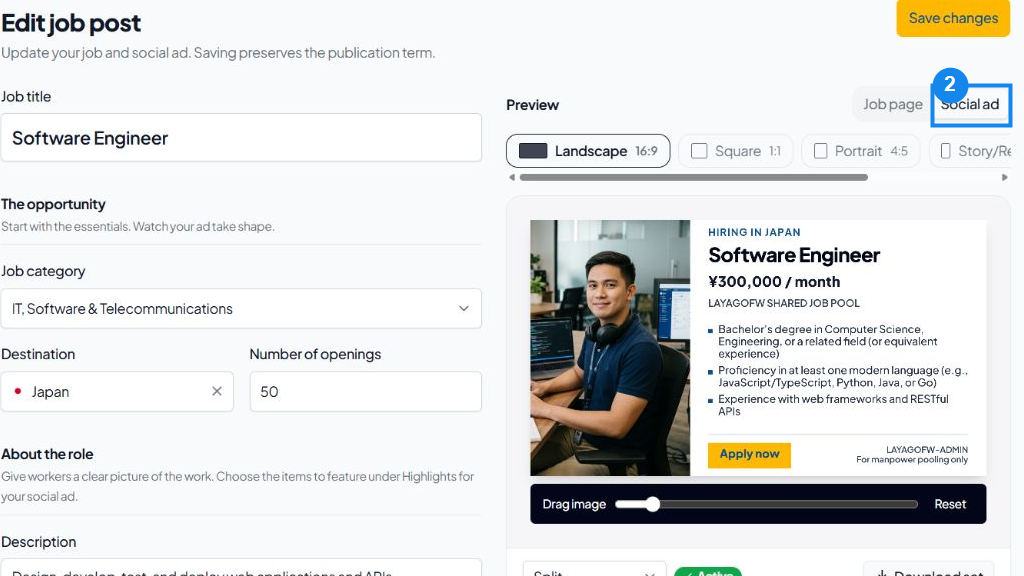
Open the Social ad tab in the preview panel. LayagOFW can prepare the same job information for several social-media placements.
Choose the preview sizes
Landscape 16:9: a wide format for horizontal posts and displays.
Square 1:1: an equal-width format that works well in social feeds.
Portrait 4:5: a taller feed format that uses more space on a mobile screen.
Story/Reel 9:16: a full-screen vertical format for Stories and Reels.
Link 1.91:1: a wide, shallow format commonly used for link previews.
Select the formats your agency needs and review each preview. The image and text may be rearranged to fit the selected shape, so confirm that the headline, pay, highlights and worker image remain clear.
Choose a creative template
The Creative template setting changes how the worker image and job information are arranged. Available templates include Standard, Split, Arc, Cut, Cover, Portal and Mosaic.
For example, Split places the worker image on one side and the headline, salary, highlights and call to action on the other. Try the templates in the preview and choose the layout that keeps the most important information easy to read.
Add a worker image
You can add the main image in two ways:
Upload: use an approved image your agency owns or has permission to use.
Generate: create a worker image using LayagOFW. Each job allows up to three successful generation attempts, and the generated images remain saved with the job.
Select the image you want to use. Use Drag image to adjust its position inside the template, or select Reset to restore the original placement. Review the final image for accuracy and suitability before publishing.
Select up to four highlights
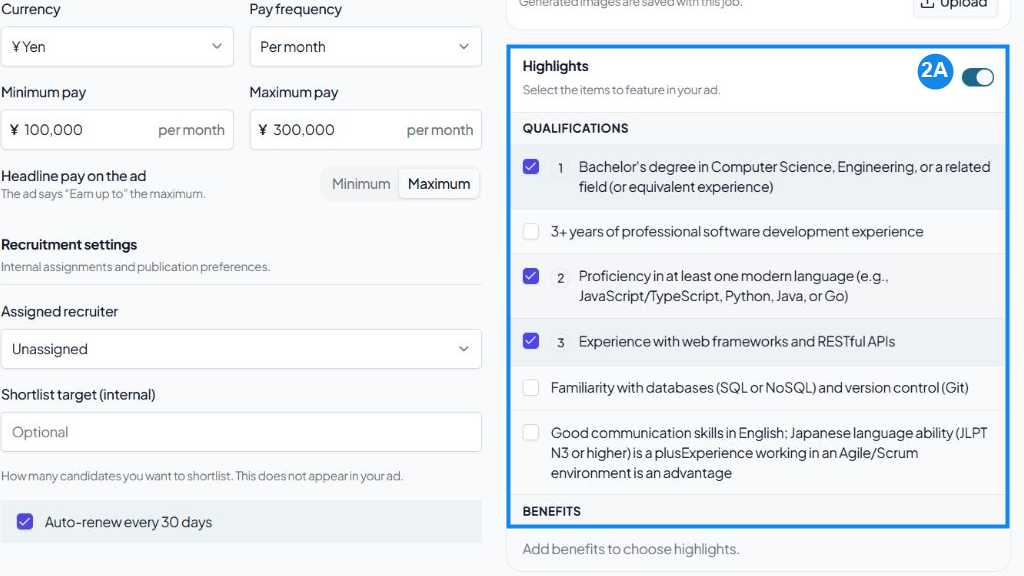
Select up to four qualifications or benefits to feature in the social ad.
Turn on Highlights and select up to four items from the qualifications and benefits entered in the job post. The selected items are numbered and displayed as short points in the social ad.
A useful combination is two essential qualifications and two confirmed benefits. Choose the information that will help qualified applicants decide whether to open the job. Keep each line short, avoid repeating the headline or salary, and check how the highlights wrap in every selected format.
Finish and download the ad
Choose a Creative color that fits your agency brand. Review every selected format one last time, then select Download set to save the graphics.
3. Publish and share the Job Pool
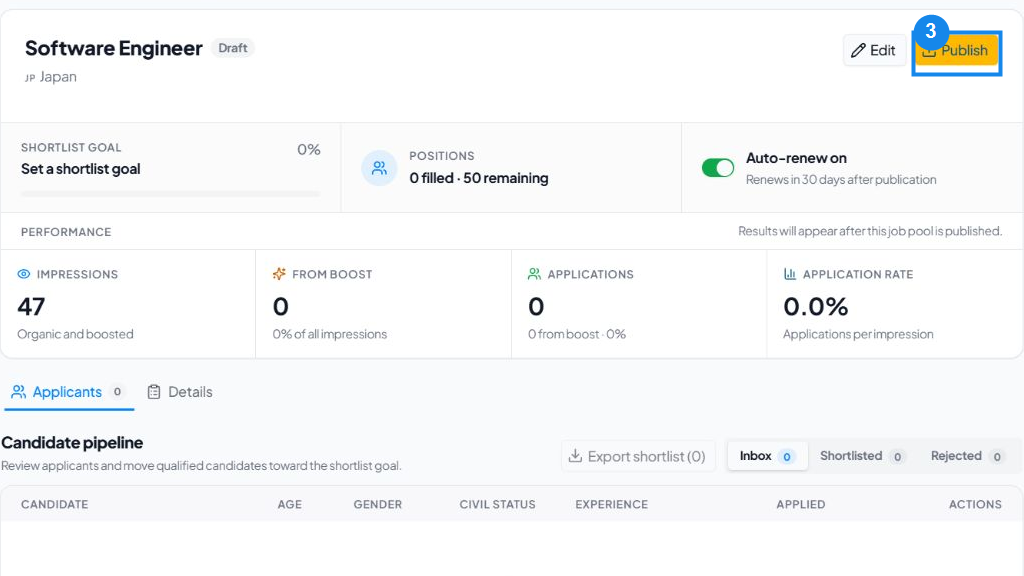
The screenshot above shows a draft Job Pool. Select Publish when the opportunity is ready. After publishing, the Job Pool becomes live and its application link becomes available. Use the page controls to:
Post the opportunity to Facebook
View the public job page
Share the application link
Edit the Job Pool
Unpublish the opportunity when necessary
Use the downloaded social graphics together with the application link in your agency's approved channels. Open the public job page and test the link before sharing it.
4. Review performance and applicants
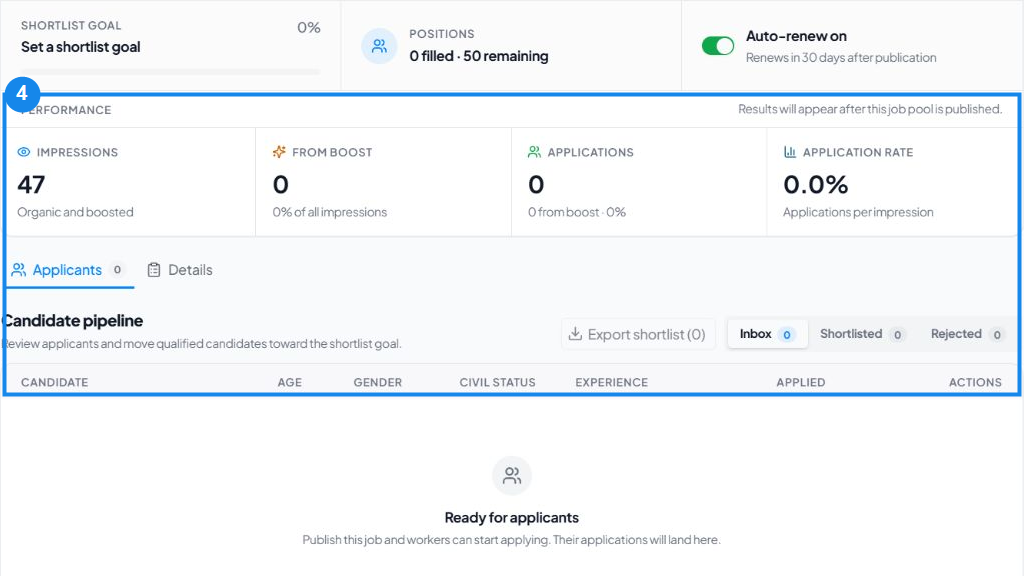
The screenshot above is a draft preview of the performance and candidate pipeline. Results and applications become available after publication. The published Job Pool page brings the job controls, hiring progress, performance and candidate pipeline together.
Shortlist goal shows progress toward the agency's target.
Positions shows filled and remaining openings.
Impressions shows how many times the opportunity was seen.
From boost separates boosted exposure from total impressions.
Applications shows completed applications and the boosted share.
Application rate shows applications as a percentage of impressions.
Use the candidate pipeline to review applicants and move them between Inbox, Shortlisted and Rejected. Open Details when you need to review the saved job information.
Monitor reach, applications, remaining positions and candidate progress from the Job Pool page.
Final checklist
The job details match the approved opportunity.
The salary, benefits and qualifications are confirmed.
The assigned recruiter and shortlist target are correct.
Every selected social-ad size is readable.
The creative template and worker image work together.
No more than four clear and useful highlights are selected.
The worker image is accurate and authorized for use.
The live application link opens correctly before sharing.